 Add to Chrome
 Add to Edge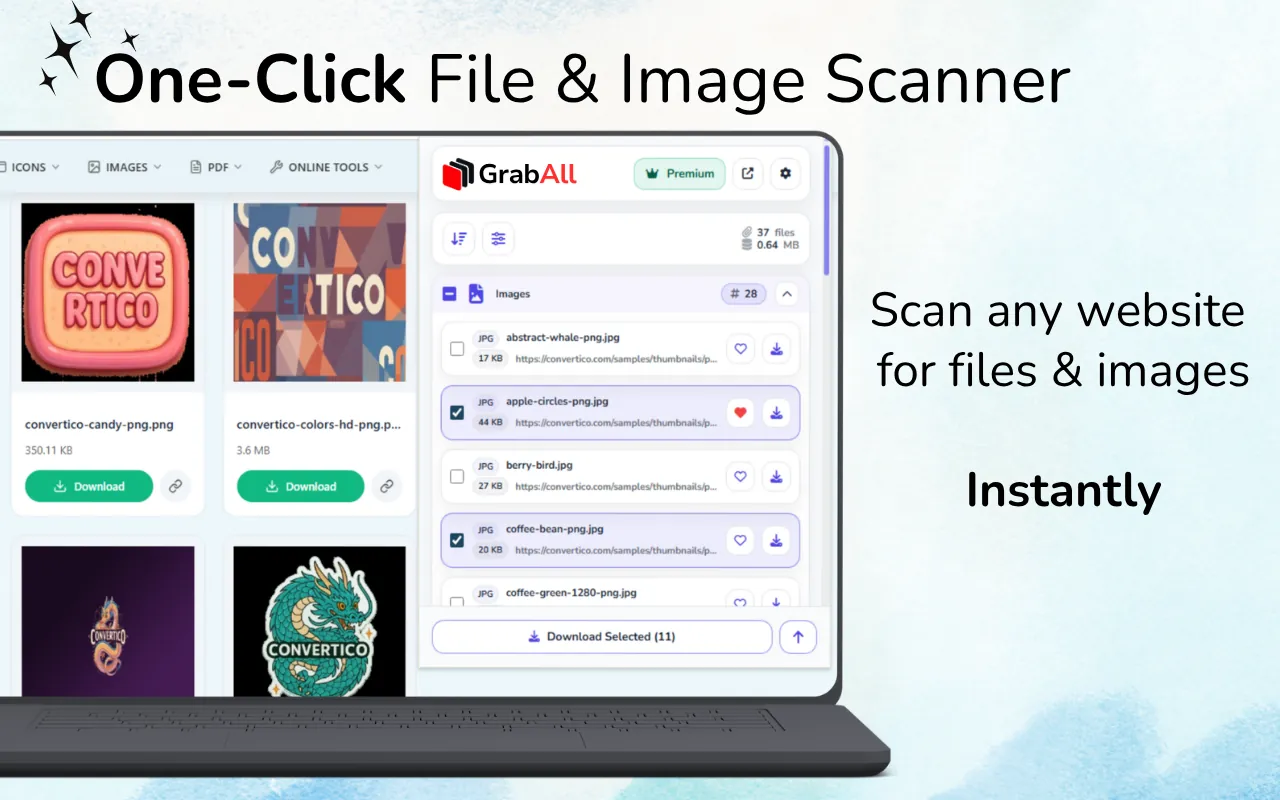
Quick answer: The fastest practical method is to scan the page with GrabAll, group the detected assets by type, filter the list by size or format, preview uncertain results, and download only the selected files. This works for files the browser can access; it does not bypass login restrictions, DRM, paywalls, or private content.
Why downloading files one by one becomes inefficient
Manual saving is reasonable when a page contains one document or a few obvious images. It becomes slow when useful files are mixed with thumbnails, icons, duplicate links, tracking URLs, responsive image variants, and unrelated page assets.
A bulk workflow separates finding files from downloading them. You first create a reviewable list, then decide what belongs in the final batch. That prevents accidental downloads and makes the process easier to repeat.
- Images such as JPG, PNG, WebP, SVG, GIF, and AVIF
- PDFs, documents, spreadsheets, presentations, CSV files, and archives
- Direct video and audio files exposed to the browser
- Other public file links present in the page or supplied URL list
A practical step-by-step workflow
Open the exact page that contains the assets you are allowed to collect. Run GrabAll, wait for the scan to finish, and inspect the results before starting any download.
Use file type filters first, then size and image resolution filters. Preview ambiguous items, remove tiny decorative assets, and copy the final links if you want a record before downloading.
- Scan the current page
- Filter by file type, size, or image dimensions
- Preview and select only relevant results
- Download the selected batch or use ZIP export when available
Choose the right scan mode
The current-page scan is best for a single gallery, product page, resource page, or documentation page. Open-tab scanning is useful when the same research task spans several pages. Imported URL scanning is designed for prepared lists that need a repeatable batch workflow.
Start with the smallest useful scope. Scanning fewer, better-selected pages produces a cleaner result set and reduces duplicate files.
Common reasons a file is missing
A visible button does not always point to a direct file. Some sites generate downloads after an API request, require an authenticated session, or stream media through segmented formats. A scanner can organize resources available to the browser, but it cannot manufacture a public file URL that the page never exposes.
If a result is missing, confirm that the file loads in the current browser session, allow the page to finish rendering, and scan the most specific page rather than a broad homepage.
- The asset loads only after interaction
- The link is temporary or requires authentication
- The page uses a protected stream or blob URL
- The visible item is a CSS background, thumbnail, or generated preview
Responsible bulk downloading
Bulk downloading saves time, but it does not change copyright, licensing, privacy, or website terms. Download only files you are permitted to use, avoid unnecessary load on websites, and keep attribution or license information with research assets when required.
For recurring work, create a short checklist covering source URL, date collected, license status, intended use, and destination folder. This makes large batches easier to audit later.
Frequently asked questions
Can I download every file from any website?
No. GrabAll can organize files and links available to your browser. It does not bypass authentication, paywalls, DRM, private storage, or technical access restrictions.
What should I filter first?
Start with file type, then use file size or image resolution to remove icons, thumbnails, and unrelated assets.
Can GrabAll scan more than one page?
Yes. Use open-tab scanning for pages already open in the browser or imported URL scanning for a prepared list, depending on the available workflow and plan.
Should I use ZIP export for every batch?
ZIP export is useful for organized batches, but normal downloads may be better when files are very large or need to remain separate.
Use GrabAll for files you are allowed to access and download. The extension helps discover and organize exposed webpage assets; it does not bypass authentication, paywalls, DRM, private content, copyright, or website rules.