
 Add to Chrome
 Add to Edge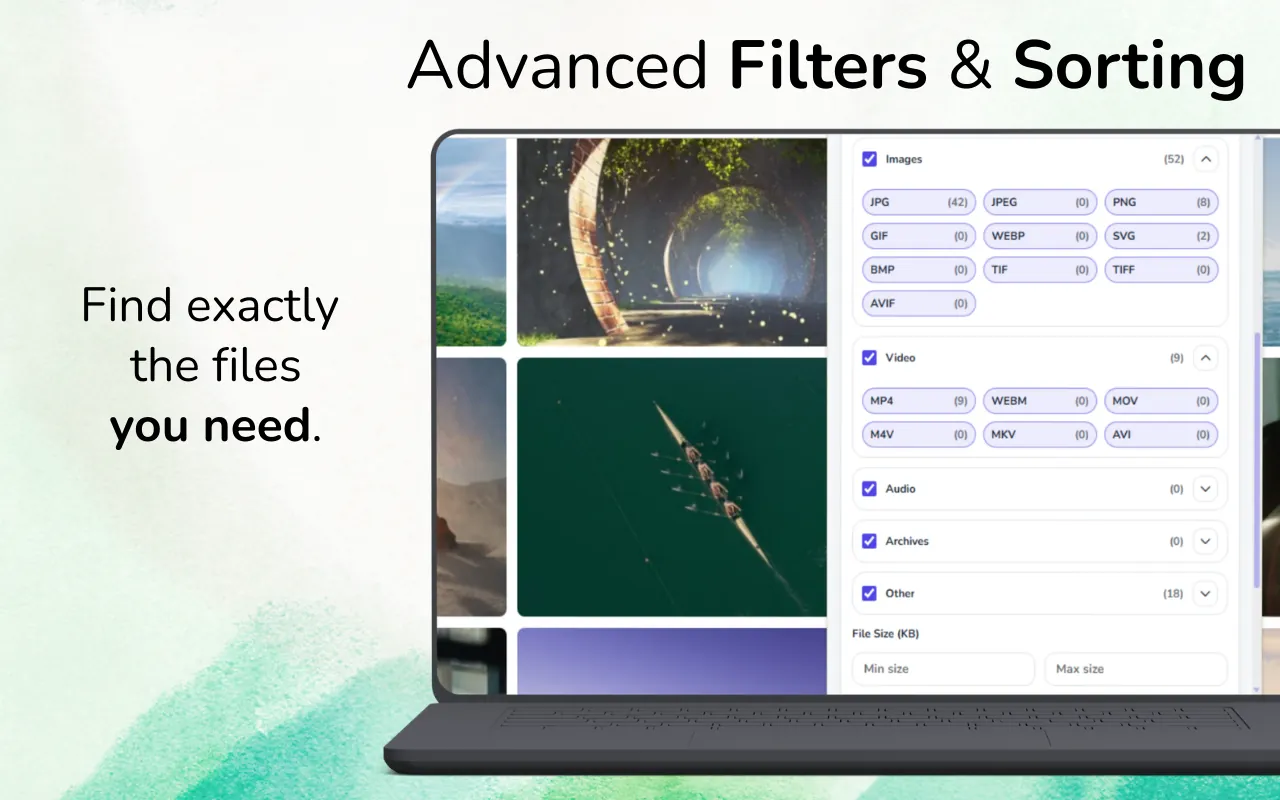
Quick answer: Scan the page with GrabAll, show image results, filter by dimensions and file size, compare duplicates, preview uncertain files, and download the selected full-size images. The goal is not the largest possible result count; it is a useful set without interface graphics and tiny derivatives.
Why one webpage can expose so many image files
Responsive websites may provide small, medium, and large variants through srcset. Product pages can include thumbnails, zoom images, recommendations, icons, logos, and lazy-loaded placeholders. A simple save-all approach mixes them together.
A better image download workflow uses dimensions, file size, format, and preview information to distinguish content images from page decoration.
- Responsive srcset variants
- Thumbnail and full-resolution pairs
- CSS backgrounds and lazy-loaded images
- Logos, icons, avatars, and tracking pixels
How to collect the useful images
Let the gallery or page finish loading before scanning. Scroll only as much as necessary to load the images relevant to your task, then run GrabAll and switch to image results.
Set a minimum width and height that excludes tiny interface assets. Sort larger files first, preview repeated-looking items, and keep the version with the dimensions appropriate for your use.
- Load the relevant gallery or product section
- Scan and filter to image formats
- Set minimum dimensions and file size
- Preview, select, and download the final set
Full-size images versus thumbnails
A larger file is not automatically the correct original, but dimensions and URL patterns provide useful clues. Thumbnail URLs often include words such as thumb, small, crop, or explicit dimensions. Full versions may appear in links, zoom viewers, srcset entries, or data attributes.
Use the preview and metadata together. Avoid enlarging a small thumbnail after download because that cannot restore missing detail.
Formats and conversion decisions
WebP and AVIF can be much smaller than JPEG or PNG while preserving good visual quality. Keep the source format when quality and provenance matter. Convert only after download if another application requires JPEG or PNG.
Transparent graphics are often PNG, SVG, or WebP with alpha. Photos are commonly JPEG, WebP, or AVIF. Selecting by format alone can therefore remove useful assets.
Rights, attribution, and research collections
The ability to detect an image does not grant permission to reuse it. Check the page license, creator terms, copyright status, and intended use. For moodboards or research, store the source page URL with the downloaded set.
Avoid collecting personal images or private material without a lawful reason. GrabAll should be used as an organization tool, not as a way to avoid access or usage rules.
Frequently asked questions
Why do I see several copies of the same image?
Responsive pages often expose multiple sizes or formats. Compare dimensions, file size, URL patterns, and previews to keep the most useful version.
Can GrabAll find lazy-loaded images?
It can detect images exposed after the page loads them. Scroll the relevant section into view and allow loading to finish before scanning.
How do I remove icons and thumbnails?
Use minimum dimension and file-size filters, then preview borderline results before downloading.
Does downloading an image give me permission to publish it?
No. Copyright, licensing, privacy, and website terms still apply.
Use GrabAll for files you are allowed to access and download. The extension helps discover and organize exposed webpage assets; it does not bypass authentication, paywalls, DRM, private content, copyright, or website rules.